> For the complete documentation index, see [llms.txt](https://bitprotocol.gitbook.io/bitprotocol/llms.txt). Markdown versions of documentation pages are available by appending `.md` to page URLs; this page is available as [Markdown](https://bitprotocol.gitbook.io/bitprotocol/guides/provide-liquidity.md).
# Provide liquidity
Bit Protocol is has a Stability Pool and local BitUSD liquidity pools to which users can deposit funds and earn yield in the process.
**Providing Liquidity on Oasis Sapphire**
For the moment, Sapphire users can use our Partner Protocols' liquidity pools. Here is the step-by-step guide:
[**Neby** ](https://neby.exchange/)
Providing liquidity to Neby is straightforward. Go to the Neby Exchange link provided above, connect your wallet and click the "Pools" section.
Click the wROSE/ BitUSDs pool. In the future there will be multiple pools for BitUSD using different collaterals: in this guide, we will use the wROSE / BitUSDs pool.
After selecting the pool, you'll get to select the price range for that pool. This can be either Full-Range or a narrower manual selection. The narrower the price range, the higher the profits. Remember, only pools in-range will earn fees. If you manage your pools actively, you may prefer to set a narrow range for higher profits, but keep in mind the fees related to swapping pool ranges: the best way to earn the highest yield is to select a range that you feel comfortable with.
After selecting the price range, click "Add Position". Your wallet will ask you to verify the transaction: after that, you now have a liquidity pool position in Neby!
[**Thorn**](https://app.thornprotocol.com/)
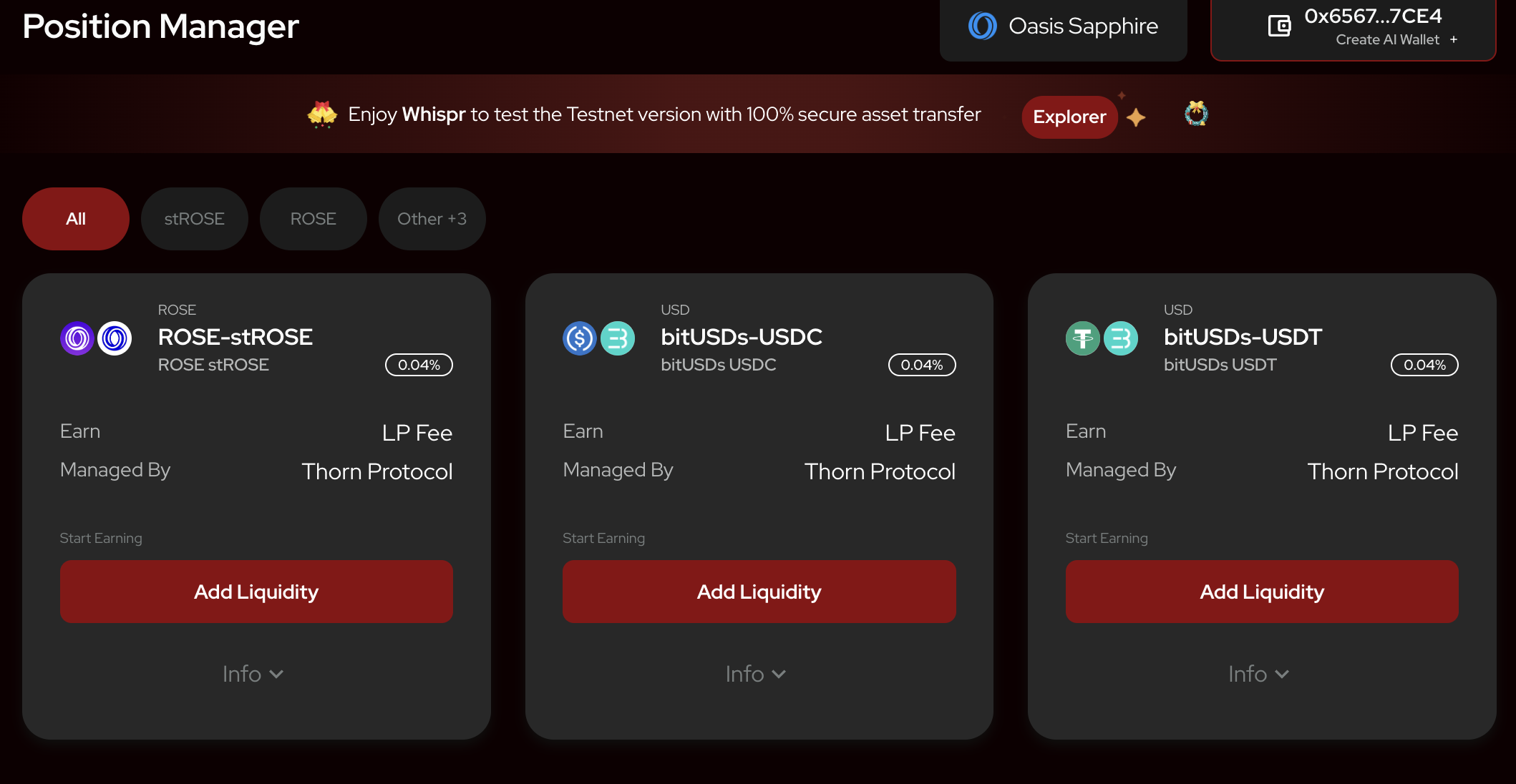
Thorn Protocol offers a stableswap (low slippage) and liquidity pools. Connect your wallet to the protocol and click on "Position Manager" to see available pools. We will use the USDC / BitUSDs pool in this guide. Select a pool and click "Add Liquidity":
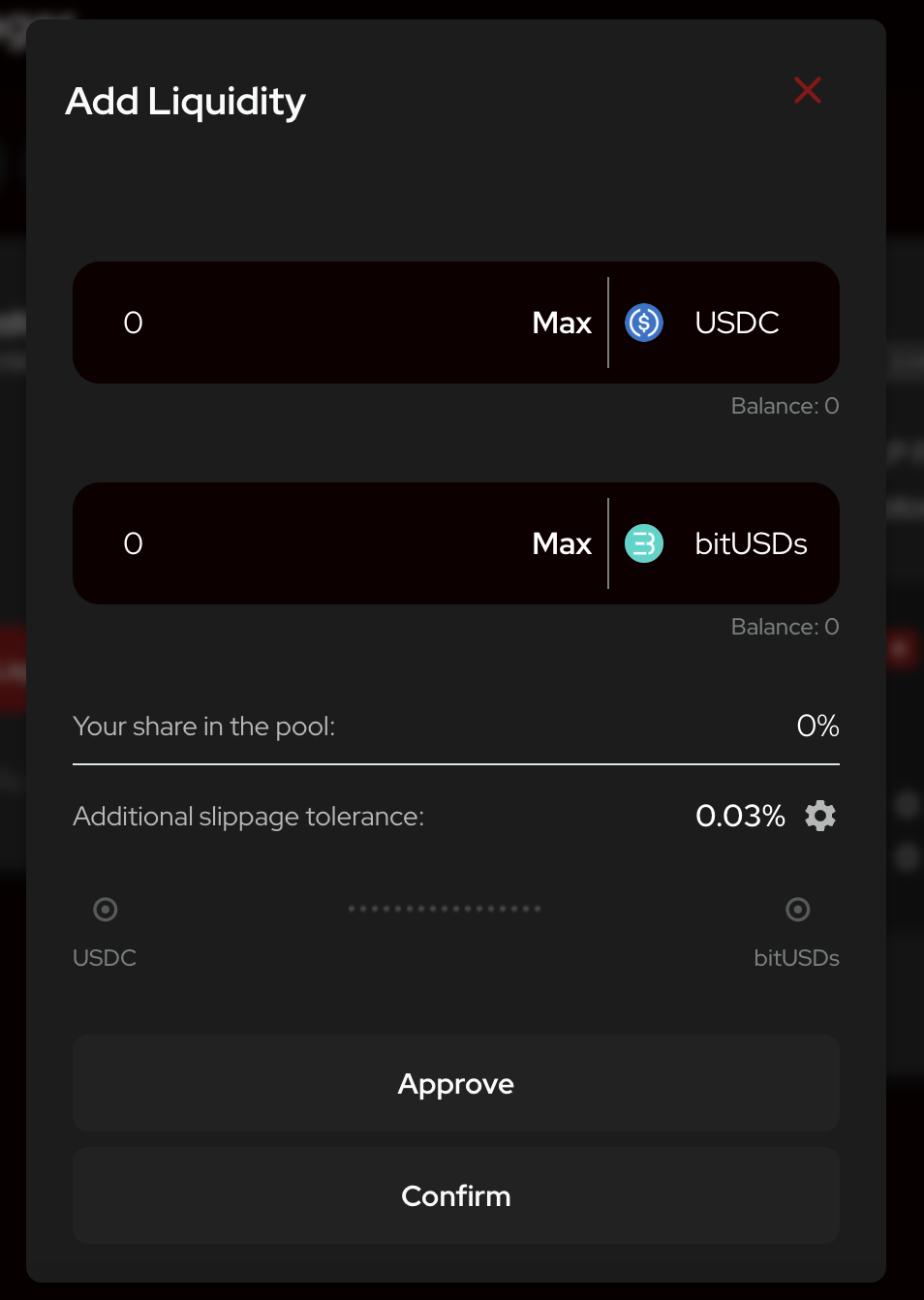
After clicking Add liquidity you will see a + and a - sign for adding or removing liquidity. Click on the + sign, select the amount you want to add and click "Approve". Confirm the transaction in your wallet. Congratulations — you now have a liquidity pool position on Thorn!